
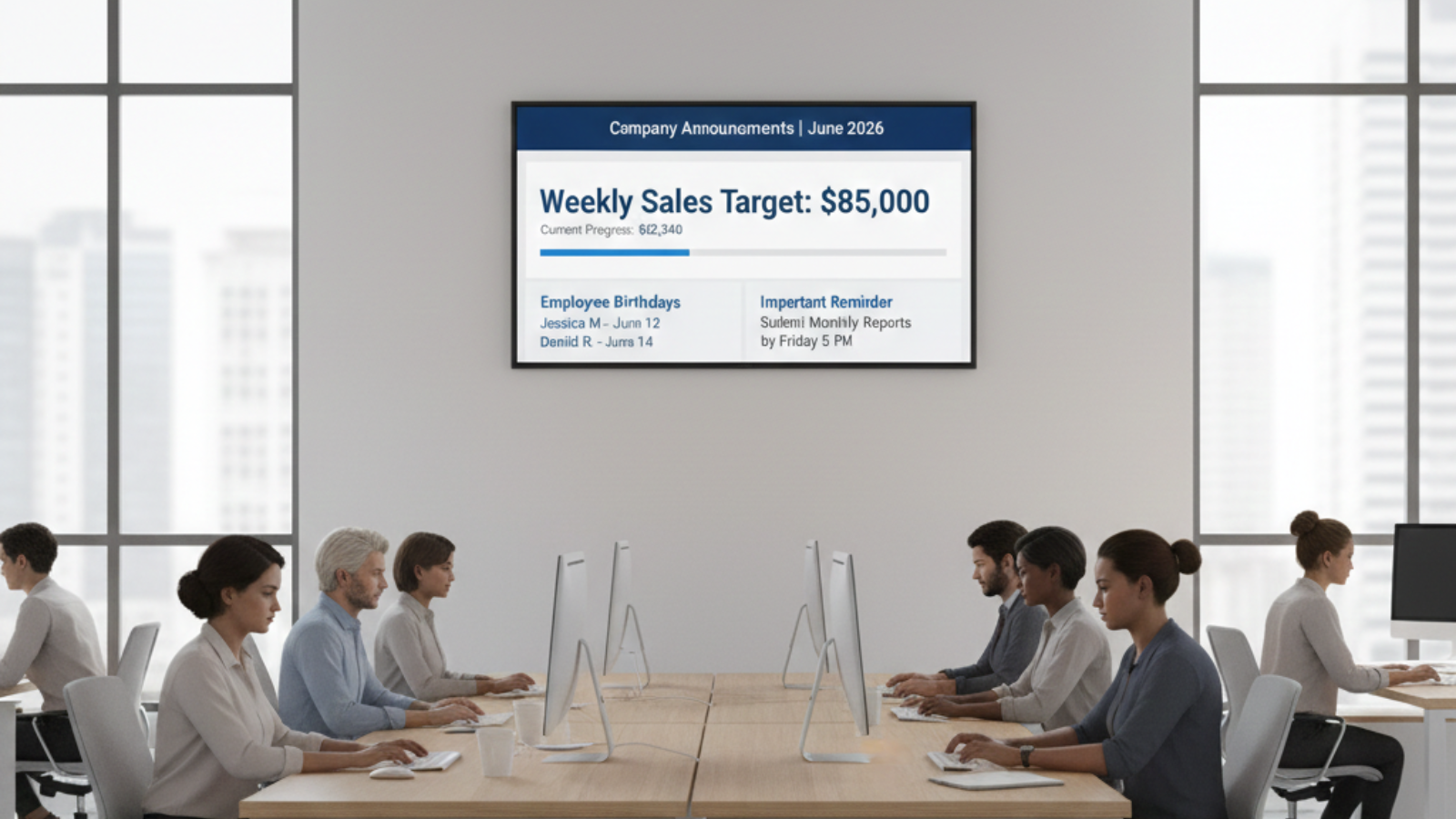

Clear communication keeps teams aligned. Whether you run a small accounting firm in Texas, a marketing agency in California, or a logistics office in New York, sharing timely updates matters.
Instead of printing notices or sending long email threads that employees might miss, many companies now use office TV announcements to share updates visually on screens around the workplace.
The good news is that you do not need a complex IT infrastructure or expensive hardware. With MediaXGo, you can manage corporate TV displays, internal communication screens, and office information boards in minutes.
This practical guide walks you through how to set up and manage easy remote announcements on office TV screens free, using MediaXGo.
Why Office TV Announcements Work So Well
Modern offices are busy. Emails get buried. Chat apps move fast. Bulletin boards go unnoticed.
Office TVs solve this problem because:
- They are visible in shared spaces.
- They deliver information repeatedly.
- They reinforce important messages.
- They improve employee engagement.
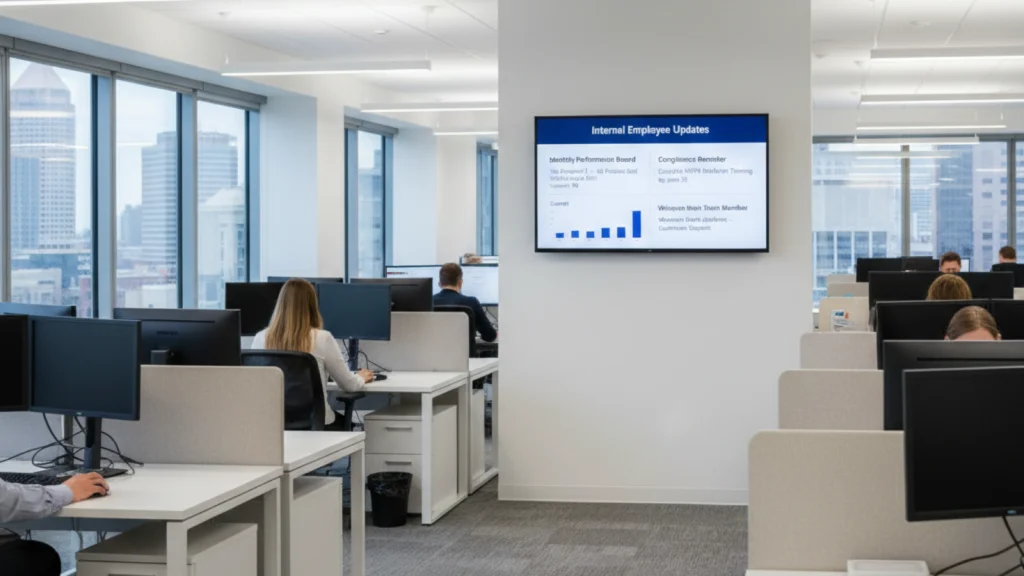
From employee updates to shift schedules, safety reminders, and monthly goals, internal screens create a central communication hub.
Real Example: A Small Office in the USA
Imagine a 15-person insurance office in Ohio. They needed to display:
- Weekly sales targets
- Birthday announcements
- Team performance charts
- Important compliance reminders
Before using office TV announcements, they relied on email. Staff often missed updates.
After setting up MediaXGo on a TV in their break room:
- Sales performance became transparent.
- Birthday celebrations increased morale.
- Compliance reminders were always visible.
- Managers could update content remotely from their laptop.
No IT specialist was required.
What You Need to Get Started
Setting up office TV announcements is simpler than most businesses expect.
Basic Requirements
- A TV screen
- A stable internet connection
- A smart device or TV browser
- A MediaXGo account
That is it.
You do not need servers.
You do not need complicated cables.
You do not need an IT department.
Step by Step Device Setup
Here is how to set up MediaXGo for your office information boards.
Step 1: Choose Your TV Type
You can use:
- Smart TVs with built in browsers
- Android TV devices
- Amazon Fire TV Stick
- Windows mini PC connected to TV
- Any device with a web browser
Step 2: Connect to Internet
Make sure your office WiFi is stable. If your TV is far from the router, use:
- Ethernet cable
- WiFi extender
- Strong business router
Stable internet ensures smooth playback of announcements.
Step 3: Open MediaXGo on the TV
- Open the browser.
- Enter your MediaXGo dashboard link.
- Log in.
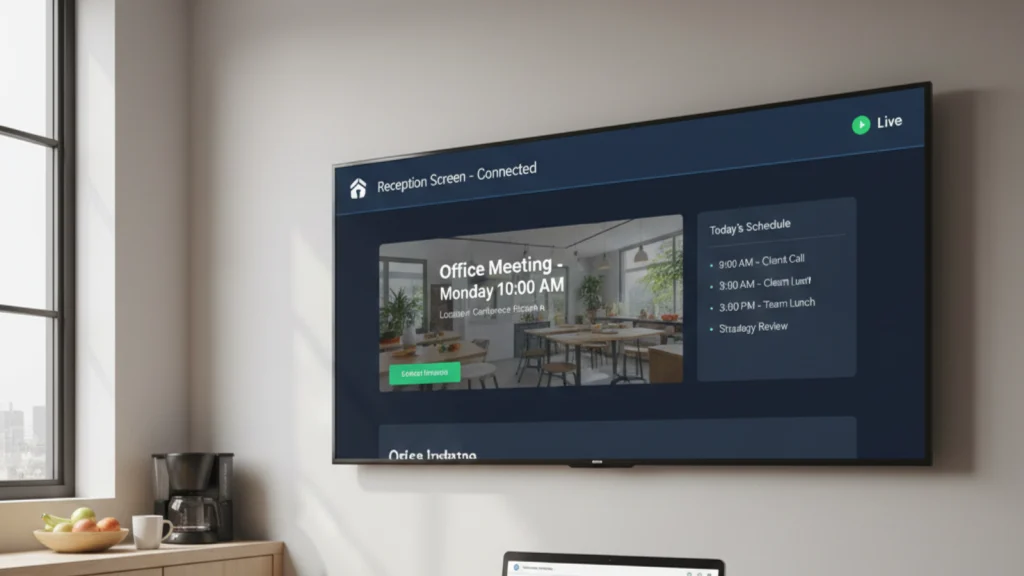
- Assign the screen a name such as “Reception TV” or “Break Room Screen.”
Now your business TV manager is active.
Step 4: Create Your First Announcement
From your laptop or mobile device:
- Log into MediaXGo.
- Upload content such as:
- Images
- Slides
- Videos
- Schedule display timing.
Within seconds, the TV updates automatically.
This is what makes it easy remote announcements on office TV screens free.
10 Practical Tips for Effective Office TV Announcements
1. Keep Messages Short
Employees glance at screens for a few seconds.
Use clear headlines and simple visuals.
Instead of:
“Reminder to submit your time sheets before the end of business day Friday.”
Write:
“Submit Time Sheets by Friday 5 PM.”
2. Use Consistent Branding
Match company colors and logo.
This keeps corporate TV displays professional.
3. Rotate Content
Avoid screen fatigue.
Schedule announcements to rotate every 10 to 20 seconds.
4. Display Key Metrics
Small sales teams benefit from real time dashboards:
- Monthly targets
- Completed deals
- Performance rankings
Visual progress encourages motivation.
5. Include Employee Recognition
Birthday slides
Work anniversaries
Top performer highlights
Internal communication screens are powerful morale boosters.
6. Schedule Content by Time of Day
Morning: Daily agenda
Afternoon: Performance updates
Evening: Reminders for next day
MediaXGo allows easy scheduling without manual switching.
7. Use Multiple Screens Strategically
Reception screen: Welcome message
Meeting room screen: Agenda
Warehouse screen: Safety reminders
This turns office information boards into targeted communication tools.
8. Add Emergency Notices
If urgent updates are needed:
- Weather warnings
- System outages
- Policy changes
You can push instant announcements remotely.
9. Keep Designs Clean
Avoid overcrowding slides.
Large fonts improve readability from distance.
10. Monitor and Improve
Ask employees:
- Are updates helpful?
- What information should be added?
Use feedback to refine your office TV announcements.
Small Office Use Cases Across the USA
Case 1: Digital Marketing Agency in California
A 20-person agency used internal communication screens to display:
- Campaign performance
- Client wins
- Content deadlines
- Motivational quotes
Result:
Improved transparency and accountability.
Case 2: Medical Clinic in Florida
They needed to show:
- Staff shift schedules
- Health compliance reminders
- Emergency protocols
With MediaXGo:
- Managers updated schedules remotely.
- No printed notices were required.
- Communication became consistent.
Case 3: Manufacturing Office in Michigan
Their office information boards show:
- Safety statistics
- Production goals
- Maintenance schedules
Remote updates saved hours of manual coordination.
Why Choose MediaXGo for Office TV Announcements
There are many digital signage tools available. However, MediaXGo focuses on simplicity.
Key Benefits
1. No Complicated Setup
Plug in device.
Open browser.
Start displaying.
2. Free Option Available
Perfect for small businesses testing internal communication screens.
3. Remote Management
Update all screens from one dashboard.
4. Works With Existing TVs
No need to buy expensive hardware.
5. Centralized Control
Manage multiple office locations from one business TV manager account.
How Office TV Announcements Improve Productivity
Internal communication impacts:
- Team alignment
- Motivation
- Operational clarity
When information is visible:
Employees spend less time asking questions.
Managers spend less time repeating updates.
Everyone stays informed.
Especially in growing businesses, office TV announcements reduce communication gaps.
Best Content Ideas for Office TV Screens
Here are ready to use ideas:
- Weekly goals
- Daily schedule
- Company news
- Employee birthdays
- Training reminders
- Performance charts
- Safety guidelines
- Upcoming holidays
- New hire introductions
- Motivational messages
These simple ideas turn standard TVs into powerful corporate TV displays.
Common Mistakes to Avoid
- Too much text
- Small font sizes
- No content rotation
- Outdated announcements
- Over complicated setup
Remember, the goal is clarity and simplicity.
Scaling Across Multiple Locations
If your business grows to multiple offices:
MediaXGo allows:
- Screen grouping
- Location specific announcements
- Central dashboard control
For example:
A retail chain in Illinois manages 5 back office screens from one account.
Each store receives its own employee updates.
Security and Control
Office communication should remain internal.
MediaXGo allows:
- Account login protection
- Screen level control
- Scheduled content management
Only authorized managers can publish announcements.
Cost Comparison: Traditional vs Digital
Traditional printing:
- Paper cost
- Ink cost
- Manual labor
- Reprinting errors
Digital office TV announcements:
- One time device setup
- Remote content updates
- No recurring printing cost
Over time, digital saves money and improves efficiency.
How to Launch Today
If you are ready to simplify your internal communication screens:
- Choose a TV in a common area.
- Connect it to internet.
- Create your MediaXGo account.
- Upload your first announcement.
- Assign it to your screen.
Within minutes, your office TV announcements will be live.
No complicated installation.
No technical expertise required.
Final Thoughts
Modern businesses need faster communication.
Email alone is not enough.
Office TV announcements provide:
- Visibility
- Consistency
- Engagement
- Control
Whether you run a small office in the USA or manage multiple branches, MediaXGo makes easy remote announcements on office TV screens free and practical.
Turn your TVs into powerful office information boards.
Improve team communication.
Boost productivity.
Start Using MediaXGo Today
Create your free account and transform your office screens into dynamic communication hubs.
Clear communication builds strong teams.
Strong teams build successful businesses.
Frequently Asked Questions
1. What are office TV announcements?
Office TV announcements are digital messages displayed on office screens to share employee updates, schedules, company news, performance metrics, and internal communication. Instead of printed bulletin boards or long email threads, businesses use corporate TV displays to keep information visible and centralized.
2. How can I set up office TV announcements without an IT team?
You can set up office TV announcements using a smart TV or device with a web browser and a stable internet connection. With MediaXGo, you simply log into your dashboard, assign a screen, upload content, and schedule announcements remotely. No servers, complicated wiring, or technical expertise are required.
3. Is there a way to manage easy remote announcements on office TV screens free?
Yes. MediaXGo offers a simple free option that allows small offices to manage easy remote announcements on office TV screens free. You can update content from any laptop or mobile device, and changes appear instantly on connected screens.
4. What type of content should be shown on internal communication screens?
Effective internal communication screens typically display:
- Weekly goals and KPIs
- Employee birthdays and recognition
- Meeting reminders
- Compliance notices
- Safety instructions
- Company news
- Shift schedules
Short, clear messages with large fonts work best for visibility.
5. Can I manage multiple office locations from one dashboard?
Yes. A business TV manager like MediaXGo allows centralized control of multiple screens across different office locations. You can group screens, assign location specific announcements, and monitor screen status from one dashboard.